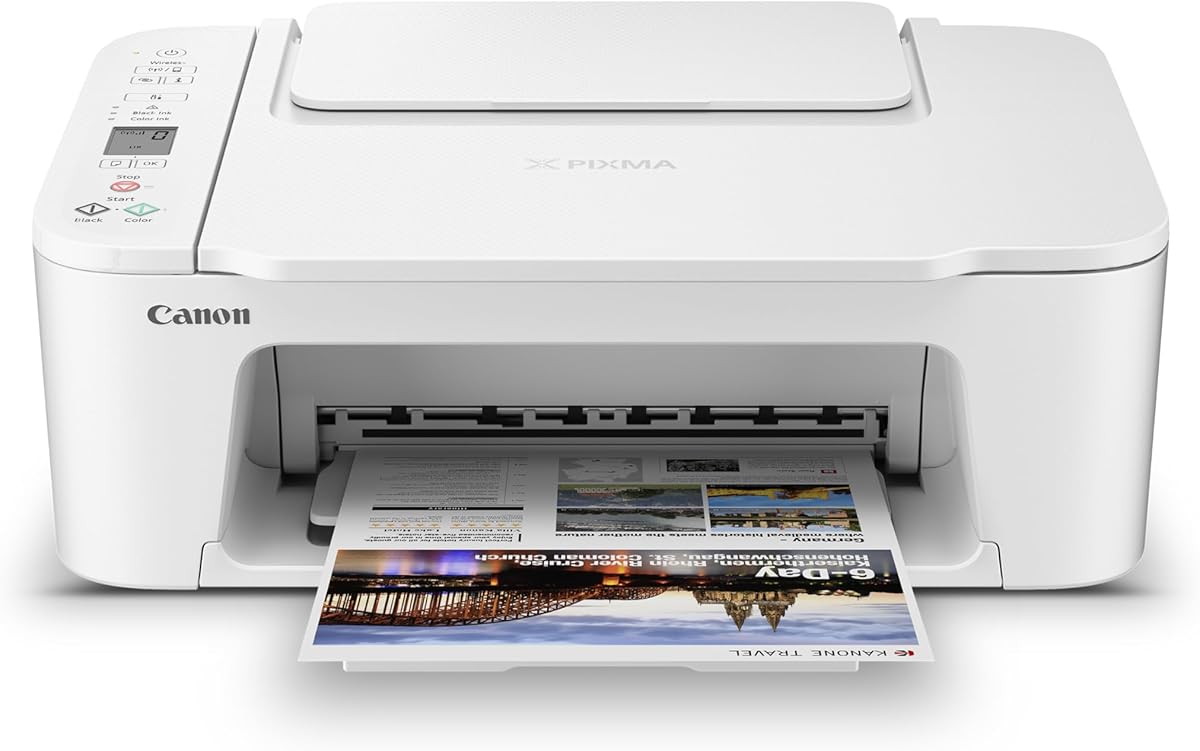
Canon PIXMA TS3720
4.0Editor score
Dual-band Wi-Fi support
Compatible with Chromebook
Compact and stylish design
Discover the top Chromebook compatible printer options for home and office use. Our guide compares features, connectivity, and performance to help you choose
Finding a reliable printer that works seamlessly with your Chromebook is essential for students, professionals, and home users alike. Chromebooks often have limited software options, so choosing a device with robust cloud and wireless capabilities ensures smooth operation without driver headaches.
We evaluated ten top-rated models based on connectivity options, print quality, ease of setup, and overall value. Each product was assessed for its ability to integrate with Google Cloud Print alternatives and mobile workflows that Chromebook users rely on daily.
This guide details the strengths and limitations of each model to help you make an informed decision. Keep in mind that prices and availability fluctuate frequently, so verify current listings before making your final purchase to ensure you get the best deal.
4.0Editor score

4.2Editor score

4.3Editor score
The following table provides a side-by-side comparison of all ten models featured in this guide. Review the key specifications and features to quickly identify which printer aligns best with your specific Chromebook workflow and budget requirements.


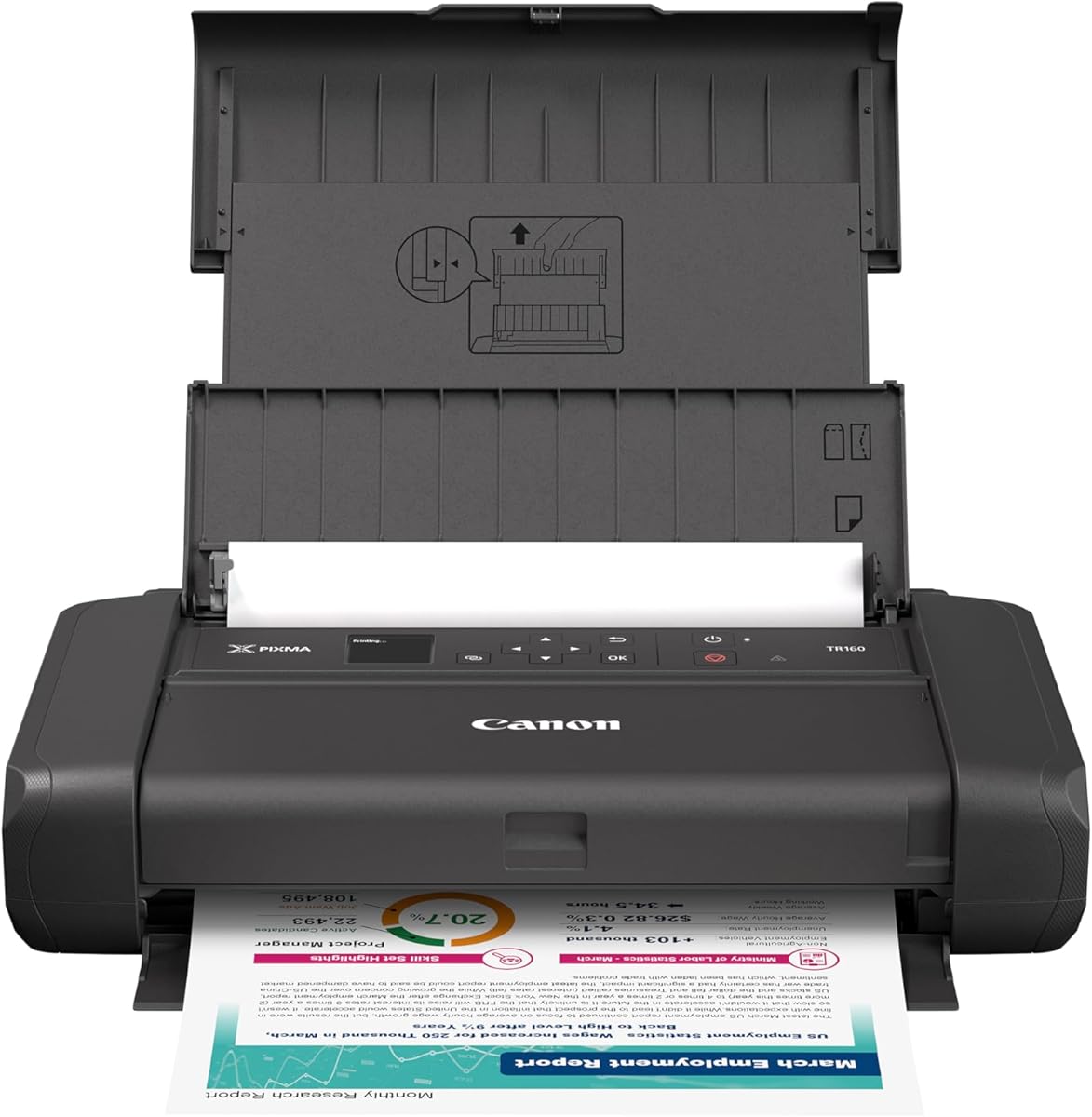
The Canon PIXMA TS6520 stands out as the top choice for Chromebook users seeking a balance of performance and value. With its crisp vibrant prints and reliable dual-band Wi-Fi connectivity, it handles everyday documents and photos effortlessly without needing complex drivers.
We may earn a commission when you buy through this link, at no additional cost to you.
Its hybrid ink system ensures sharp text and vivid colors which is crucial for school projects or home office reports. The intuitive OLED display makes managing ink levels and printer settings simple ensuring you never get stuck mid-print due to low ink warnings.
While it lacks an auto document feeder and scanning speeds are average, these trade-offs are acceptable for the price point. Most users prioritize print quality and ease of use over high-volume scanning making this a solid investment for standard home needs.
We recommend this printer for students and families who need dependable wireless printing from Chromebooks. Its compact design fits well on small desks while delivering professional results that satisfy both casual and occasional heavy printing demands.
The 2-cartridge hybrid ink system delivers impressive detail for both documents and photos making it versatile for various tasks.
Dual-band Wi-Fi ensures stable connections allowing smooth printing from any device on your network without interruptions.
We may earn a commission when you buy through this link, at no additional cost to you.
The Canon PIXMA TS3720 offers an accessible entry point for Chromebook owners needing basic printing capabilities. It supports wireless printing directly from Chromebooks via AirPrint or Mopria services eliminating the need for additional driver installations on Chrome OS.
We may earn a commission when you buy through this link, at no additional cost to you.
Setup is straightforward and can be completed in minutes allowing you to print schoolwork or household documents quickly. The intuitive LCD screen guides you through ink installation and basic functions making it friendly for non-tech savvy users.
Keep in mind it only supports single-sided printing which might increase paper usage for longer documents. However for casual users the speed difference is negligible and the cost savings often outweigh the convenience of auto-duplex printing.
This model is ideal for budget-conscious households or students who print moderately. It delivers consistent quality for everyday tasks and its small footprint ensures it won't clutter your workspace while providing essential all-in-one functionality.
The streamlined setup process and intuitive interface ensure you can start printing immediately without technical hurdles or confusion.
Support for borderless photos and various media types allows for creative projects and personalization beyond standard document printing.
We may earn a commission when you buy through this link, at no additional cost to you.
The Canon PIXMA TR7120 delivers premium features that elevate your Chromebook printing experience significantly. With an auto document feeder and duplex printing built in it handles multi-page tasks efficiently saving you time and effort during busy work periods.
We may earn a commission when you buy through this link, at no additional cost to you.
Its hybrid ink system produces sharp text and vibrant colors ensuring professional quality for presentations or important reports. The intuitive OLED display simplifies navigation allowing you to adjust settings and monitor ink levels with ease and precision.
While the price is higher than basic models the added productivity features justify the investment for power users. The compact design still fits well in home offices without sacrificing the advanced capabilities that distinguish it from budget options.
We recommend this for professionals or families with higher printing demands who want speed and versatility. It balances performance and aesthetics perfectly making it a reliable long-term solution for diverse printing needs on Chromebooks.
The auto document feeder handles multi-page scanning and copying reducing manual intervention and speeding up document management tasks.
Capable of handling diverse media types up to 8.5 by 11 inches allowing for both standard documents and creative photo projects.
We may earn a commission when you buy through this link, at no additional cost to you.
The HP DeskJet 2955 brings smart AI capabilities to home printing helping optimize layout and reduce waste. Its intuitive control panel and HP app integration make managing prints from a Chromebook straightforward even for users less familiar with printer software.
We may earn a commission when you buy through this link, at no additional cost to you.
Designed with sustainability in mind it uses recycled plastics and holds energy certifications. The instant ink trial helps manage costs effectively ensuring you never run out unexpectedly thanks to automatic delivery before depletion occurs.
While customer ratings are modest the device offers solid functionality for light daily tasks. Users should expect standard speeds but appreciate the AI that formats web pages cleanly so printed results look professional without manual adjustments.
This printer suits households needing reliable simple printing with eco-conscious values. It integrates well with mobile devices and Chromebooks providing consistent performance for homework recipes and letters without overwhelming complexity.
HP AI technology removes unwanted content and adjusts layouts ensuring cleaner prints without wasting paper on awkward page breaks.
Made with significant recycled content and certified for energy efficiency aligning with modern sustainability goals for home offices.
We may earn a commission when you buy through this link, at no additional cost to you.
The Canon PIXMA TR4720 distinguishes itself with built-in fax capabilities and an auto document feeder for efficient workflow. It is suitable for home offices where receiving and sending faxes remains necessary alongside standard document printing from Chromebooks.
We may earn a commission when you buy through this link, at no additional cost to you.
Alexa integration allows you to monitor ink levels and reorder supplies using voice commands which adds convenience to daily maintenance. The auto document feeder simplifies scanning multi-page documents reducing the manual effort required for batch operations.
Customer feedback indicates mixed experiences regarding setup but overall reliability remains acceptable for basic needs. The 100-sheet capacity reduces frequent refills allowing you to focus on tasks rather than printer maintenance routines.
Recommend this if you require fax features and document feeding without buying separate devices. It balances functionality with reasonable pricing making it a practical choice for small home offices managing diverse communication needs.
Connect to Alexa for smart notifications and auto-reorders ensuring you never face downtime due to low ink supplies unexpectedly.
The auto document feeder streamlines scanning and copying of multi-page documents saving significant time during busy work sessions.
We may earn a commission when you buy through this link, at no additional cost to you.
The Brother Work Smart 1360 emphasizes cloud connectivity and high-speed black printing for office efficiency. It integrates directly with popular cloud apps like Google Drive and Dropbox enabling users to print documents stored online without local downloads.
We may earn a commission when you buy through this link, at no additional cost to you.
With speeds up to sixteen pages per minute it handles black document tasks quickly reducing wait times. The color display and mobile connect app provide intuitive navigation for managing settings and monitoring usage from smartphones or tablets.
While the design is simple it supports large paper capacity and flexible connections including USB. This makes it versatile for environments where direct wired connections might be preferred alongside wireless options for Chromebook users.
Ideal for users needing fast print speeds and cloud workflow compatibility. It provides essential features without unnecessary complexity ensuring straightforward operation for daily home office or school tasks.
Direct integration with cloud apps allows seamless printing from stored files reducing steps in your workflow and saving local storage space.
Fast black print speeds and a large paper tray ensure uninterrupted workflow during high-volume printing tasks without frequent refills.
We may earn a commission when you buy through this link, at no additional cost to you.
The Canon PIXMA TS4320 is designed for compact spaces without sacrificing essential printing functionality. Its sleek design fits into small corners or shelves making it perfect for dorms or shared workspaces where desk real estate is limited.
We may earn a commission when you buy through this link, at no additional cost to you.
Setup is effortless with dual-band Wi-Fi ensuring stable connections for your Chromebook. The hybrid ink system delivers vivid colors and sharp text meeting expectations for both document work and creative photo projects.
While it lacks an automatic display or duplex printing its eco certifications and energy efficiency make it appealing to environmentally conscious users. You save power and materials while maintaining quality output suitable for daily tasks.
Recommend this for users prioritizing space efficiency and ease of use. It offers reliable performance and aesthetic appeal making it a solid choice for home or student environments needing minimal footprint.
Its compact design fits seamlessly into any workspace preserving valuable desk space while delivering full all-in-one functionality.
Certified by EPEAT and ENERGY STAR helping reduce environmental impact through energy efficiency and sustainable design practices.
We may earn a commission when you buy through this link, at no additional cost to you.
The HP Envy 6155 shines with true-to-screen technology ensuring prints match on-screen colors for vibrant photo reproduction. Its large touchscreen simplifies navigation and allows precise adjustments for creative projects and high-quality document printing alike.
We may earn a commission when you buy through this link, at no additional cost to you.
Auto duplex printing helps save paper while the HP app streamlines printing from mobile devices or Chromebooks. The device is built with recycled materials aligning with modern sustainability goals without compromising on performance or durability.
Users may find the ink restrictions strict as only HP chip cartridges are supported. Despite this the print quality and usability features justify the investment for those prioritizing visual fidelity and ease of control.
Recommend for creatives or families who value photo printing quality. It offers professional results and user-friendly interfaces making it a standout option for home users needing versatile high-end capabilities.
HP P3 technology ensures vibrant prints match what you see on your screen providing confidence in color critical tasks.
The intuitive touchscreen allows easy navigation through settings and options reducing setup complexity for all user types.
We may earn a commission when you buy through this link, at no additional cost to you.
The HP DeskJet 4355 offers an auto document feeder at a budget price point making it valuable for multi-page scanning tasks. Its HP AI capabilities optimize formatting to ensure printed pages look clean and professional without manual tweaking.
We may earn a commission when you buy through this link, at no additional cost to you.
The intuitive control panel simplifies operations while the HP app enables convenient wireless printing from Chromebooks. Sustainable design features ensure reduced environmental impact making it an attractive option for eco-aware buyers on a budget.
Ratings suggest mixed satisfaction with some users experiencing minor connectivity issues. However the combination of auto feeding and AI tools provides unique value for students or home users needing occasional scanning capabilities.
Recommend for those seeking affordable multi-functionality with automation features. It balances cost and convenience well for users who need occasional document feeding without committing to higher-end models.
HP AI formatting technology removes clutter and optimizes layouts ensuring efficient use of paper for clear readable outputs.
Offers an auto document feeder and AI optimization at an entry price providing advanced tools without premium pricing.
We may earn a commission when you buy through this link, at no additional cost to you.
The Canon PIXMA TR160 is designed for mobility allowing you to print documents and photos directly from your backpack. Its lightweight design and wireless direct mode enable printing without a router which is useful for travel or on-the-go Chromebook users.
We may earn a commission when you buy through this link, at no additional cost to you.
The 5-color hybrid ink system ensures vibrant detail and sharp text even on smaller devices. The OLED display keeps tracking ink levels and settings easy ensuring you stay informed while managing portable operations.
Although it is pricier than desktop models the convenience of printing anywhere justifies the cost for mobile professionals. Limited paper capacity means refills are frequent but this is acceptable for portable workflows focused on flexibility.
Recommend for travelers or remote workers needing printing on demand. Its compact size and wireless flexibility make it a standout for users prioritizing mobility over large-volume printing capacity.
Lightweight and designed to fit in bags this printer supports seamless printing on the go without requiring a network setup.
Wireless Direct mode allows connections even without a router ensuring reliable printing from any compatible device anywhere.
We may earn a commission when you buy through this link, at no additional cost to you.
Choosing the right printer for your Chromebook requires understanding connectivity needs and feature priorities. Below are key factors to evaluate before making a purchase.
Ensure the printer supports dual-band Wi-Fi and standard protocols like AirPrint or Mopria Print Service for seamless Chromebook integration. Direct wireless connections are useful if your network is unstable.
Prioritize printers with stable connection protocols to avoid frequent disconnections during printing tasks.
Look for hybrid ink systems or specific color technologies that deliver sharp text and vibrant photos. High-resolution output is vital for school projects and professional documents.
Check user reviews to confirm color accuracy and consistency across different media types.
Print speed measured in pages per minute impacts productivity especially for large documents. Paper tray capacity reduces the need for frequent refills during busy periods.
Select a model with sufficient speed and tray size to match your typical volume needs.
Features like auto-duplex printing and auto document feeders save time and paper. These are essential for multi-page tasks and reducing manual workload.
Invest in models with these features if you regularly handle lengthy documents or batch scanning.
Evaluate ink cartridge costs and delivery options like subscription services. High initial printer costs can be offset by lower ongoing supply expenses.
Consider total cost of ownership including cartridge prices when calculating budget fit.
Compact designs are beneficial for home offices or small workspaces. Ensure the device fits comfortably without obstructing other essential equipment.
Choose a footprint that balances size with necessary features to avoid clutter.
Smartphone apps and cloud connectivity allow flexible printing from anywhere. Direct integration with Google Drive or Dropbox streamlines workflow efficiency.
Look for intuitive apps and cloud support to maximize convenience across devices.
A comprehensive warranty provides peace of mind against defects or malfunctions. Manufacturer support quality is key for troubleshooting connectivity issues.
Verify warranty terms and availability of customer support before purchasing to ensure assistance when needed.
Begin by installing the manufacturer app and connecting to your network. Ensure both your Chromebook and printer are on the same Wi-Fi network for seamless recognition.
Use the dedicated app or Chrome OS built-in printing settings to send documents. Adjust settings like duplex or quality directly from the device to manage output effectively.
Regularly update firmware and run nozzle checks to maintain print quality. Clean the paper tray and replace ink promptly to avoid jams or faded outputs.
Most modern printers work directly with Chrome OS using built-in protocols. You typically only need to add the printer in settings and the system will handle drivers automatically.
Dual-band Wi-Fi is ideal for stability and speed. Protocols like AirPrint and Mopria are universally supported ensuring smooth communication between devices.
Yes many printers integrate with Google Drive and Dropbox. This allows you to print documents stored in the cloud without downloading them first.
Enable borderless printing in the print settings menu. Ensure your printer supports photo paper sizes for optimal results on creative projects.
Restart both devices and check network settings. Ensure firmware is updated and reconnect using the manufacturer app to restore a stable connection.
Many models offer instant ink or auto-reorder services. Subscriptions ensure you never run out and often save money through discounted delivery rates.
Yes most printers support multiple simultaneous connections. Family members can print from their own devices provided they are on the same network.
Install the manufacturer app and configure the fax settings. Some printers allow direct sending from Chrome OS while others may require phone line setup.
Selecting the right printer depends on your specific needs such as budget, space, and workload. The Canon PIXMA TS6520 and TR7120 offer robust features for most users.
Prioritize connectivity and print quality to ensure seamless integration with your Chromebook workflow. Advanced features like duplex printing enhance convenience and efficiency.
Always verify current pricing and availability before purchasing to ensure you get the best value. Regular updates and maintenance will keep your printer running smoothly for years.