
BenQ MA270UP 27” 4K
4.3Editor score
Mac color match tuning
90W USB-C power delivery
Integrated Mac controls
Finding the right display for your MacBook Pro can significantly enhance your productivity and visual experience. A high-quality monitor ensures crisp text, accurate colors, and comfortable viewing during long work sessions.
We have evaluated ten top-rated monitors based on compatibility, performance, and user feedback. Each option was selected for its ability to integrate seamlessly with macOS and deliver exceptional value for various needs.
Each pick highlights key features like resolution, refresh rate, and connectivity options. Prices and availability may change, so please verify details before making your final purchase decision online.
4.3Editor score
5.0Editor score

4.6Editor score
As an Amazon Associate we earn from qualifying purchases.
This side-by-side comparison highlights the key specifications and strengths of each monitor to help you quickly identify the best fit for your specific MacBook Pro setup and workflow requirements.



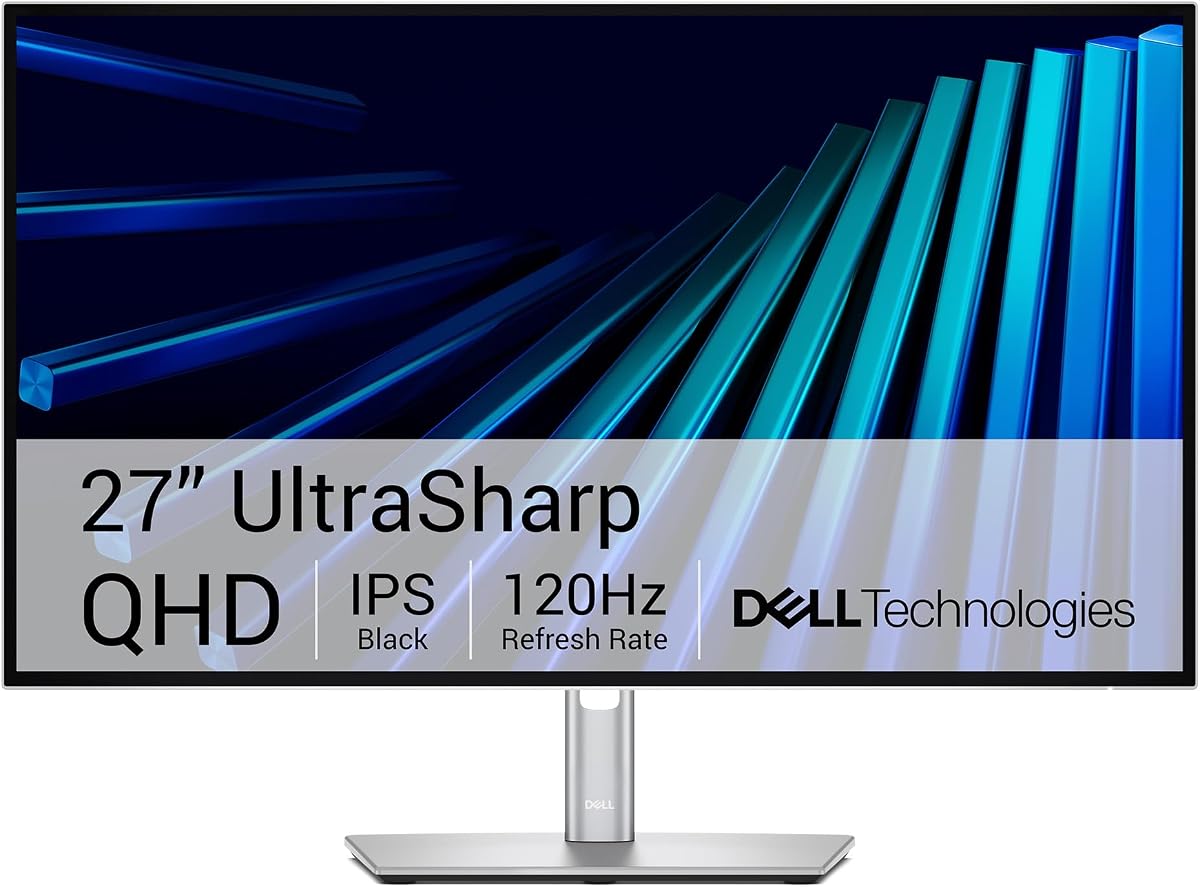
This Thunderbolt hub monitor stands out as the top premium option for MacBook Pro users who demand the highest fidelity. With a perfect five-star rating, it delivers factory-calibrated accuracy and a clean aesthetic that fits any professional workspace.
We may earn a commission when you buy through this link, at no additional cost to you.
Its 98% Display P3 coverage ensures your photos and videos look exactly as intended. The built-in KVM switch allows you to control multiple machines with one keyboard, while the Thunderbolt hub consolidates your peripheral connections into one elegant cable.
While the price is higher than standard monitors, the included hub and color precision justify the investment. The 120Hz refresh rate also makes UI interactions noticeably smoother, reducing eye strain during long coding or design sessions.
It is the ideal choice for creative professionals and executives who prioritize color accuracy and desktop organization. If you need a monitor that works flawlessly with macOS out of the box, this is the definitive upgrade.
Factory calibration ensures Delta E values remain low, so your edits match printed output or client expectations without needing manual tweaks.
The Thunderbolt hub replaces multiple adapters, delivering data, video, and power through one cable while docking your laptop and peripherals simultaneously.
We may earn a commission when you buy through this link, at no additional cost to you.
BenQ designed this monitor specifically for Apple ecosystems, ensuring a seamless connection between macOS hardware and display software. Its Mac Color Match feature automatically calibrates colors to match your MacBook's screen for consistent visuals.
We may earn a commission when you buy through this link, at no additional cost to you.
You can control brightness and volume directly from your MacBook keyboard without touching the monitor OSD. The dual USB-C ports provide 90W power delivery to charge your laptop while streaming 4K video, reducing cable clutter significantly.
The wide P3 gamut makes images look vibrant and true to life, but the stand options are less flexible than competitors. It is best suited for users who want a dedicated Mac peripheral rather than a generic display.
This is the perfect partner for MacBook Air and Pro users who value integration features. If you spend your day on Apple devices and want controls that feel native, this monitor delivers unmatched convenience.
Volume and brightness adjustments sync with your Mac keyboard keys, making the monitor feel like a true extension of your laptop's interface.
Dual USB-C ports allow one cable to charge your Mac while the second charges your iPad or phone, keeping your workspace tidy and powered.
We may earn a commission when you buy through this link, at no additional cost to you.
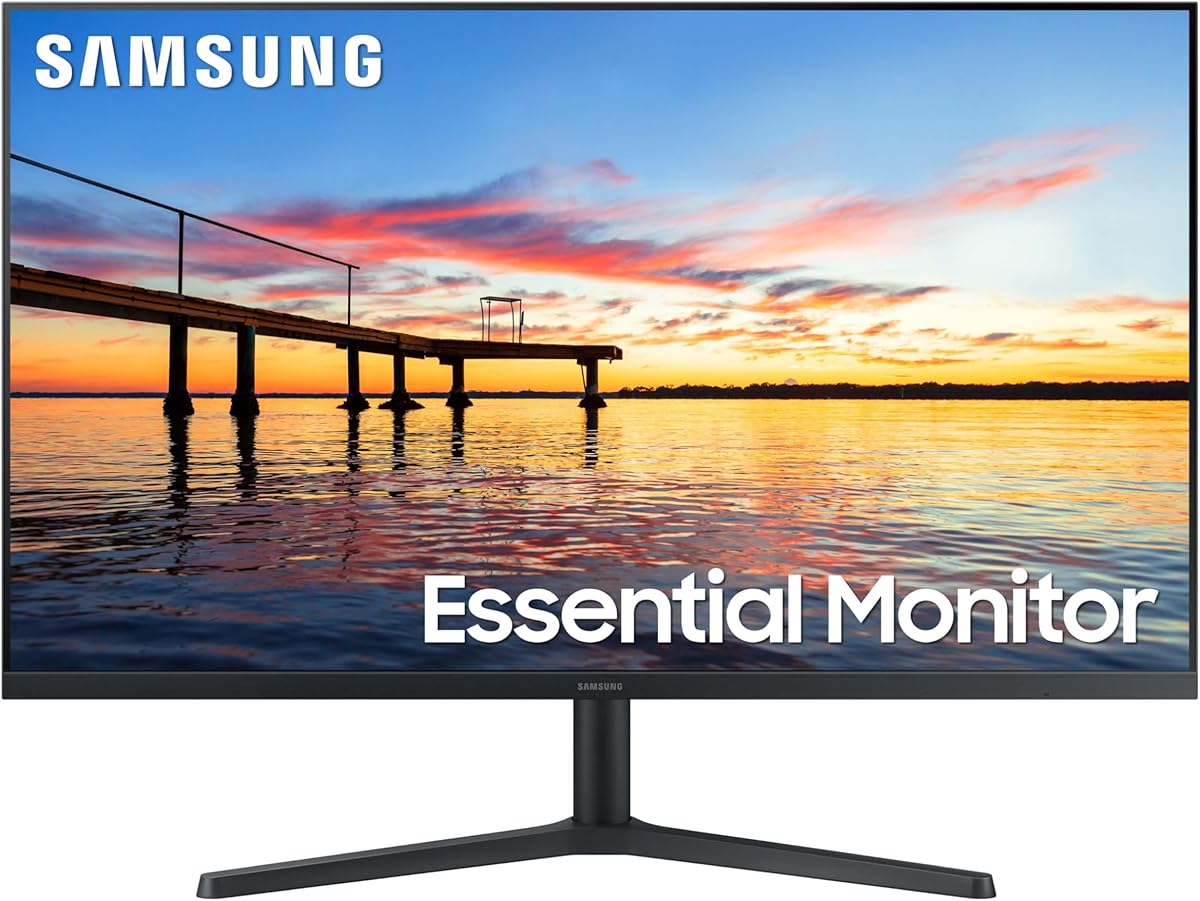
For users seeking a functional second screen without breaking the bank, this Philips model delivers impressive performance for the price. Its high 100Hz refresh rate keeps scrolling smooth, while the VA panel offers deep blacks and sharp contrast.
We may earn a commission when you buy through this link, at no additional cost to you.
The bezel-free design allows you to add it to a multi-monitor setup without distracting gaps. Flicker-free technology reduces eye strain during extended work, making it comfortable for reading documents or browsing the web all day.
While it lacks modern USB-C connectivity, standard HDMI works reliably for most setups. The trade-off between cost and features is fair, especially if you already have an adapter for your MacBook Pro connection needs.
This monitor is ideal for students or budget-conscious professionals who need reliable visuals. If you prioritize performance per dollar over premium connectors, this is a solid choice for daily productivity.
The VA panel produces deeper blacks than IPS alternatives, making it easier to view dark themes and media in low-light environments.
Slim bezels let you place screens side-by-side with minimal visual interruption, creating a seamless wide workspace for multitasking apps.
We may earn a commission when you buy through this link, at no additional cost to you.
This Dell monitor balances sharpness and speed effectively, making it versatile for both office tasks and casual media. The 4K resolution ensures text is crisp, while the 120Hz refresh rate keeps animations fluid for a responsive feel.
We may earn a commission when you buy through this link, at no additional cost to you.
ComfortView Plus protects your eyes from harmful blue light without shifting color temperature too much. It also supports AMD FreeSync, which reduces tearing when using integrated graphics, though it is primarily a productivity display.
The included speakers provide basic audio for calls but lack deep bass. For users who want a clean desk setup with a single cable for video and power, this is a reliable option.
It suits professionals who need high resolution for spreadsheets and charts. If you want a balance of visual clarity and eye comfort at a mid-range price point, this model is worth considering.
Hardware-based blue light filters ensure comfort during long workdays without requiring software adjustments or sacrificing screen brightness.
USB-C delivers both video and power, allowing you to connect your laptop with one wire for a clutter-free workspace layout.
We may earn a commission when you buy through this link, at no additional cost to you.
This LG monitor adds extra value with HDR400 support and a built-in webOS platform, turning your screen into a media hub. It offers excellent connectivity, including 90W USB-C power delivery that charges your MacBook while in use.
We may earn a commission when you buy through this link, at no additional cost to you.
The Switch app lets you split the screen into multiple zones for multitasking efficiently. Its ergonomic stand allows smooth adjustments, ensuring you can find a comfortable viewing position regardless of desk height.
While HDR performance is moderate compared to premium panels, it still brightens dark scenes effectively. The built-in speakers are decent for casual viewing but external headphones are recommended for better fidelity.
It is perfect for users who want a smart display and a workstation. If you enjoy streaming content directly on your monitor while working, this model offers a unique and useful feature set.
On-screen control lets you split windows into six sections using hotkeys, helping you manage multiple apps without complex window management.
HDR400 certification boosts brightness and contrast in supported content, making media more vivid than on standard SDR displays.
We may earn a commission when you buy through this link, at no additional cost to you.
This compact monitor brings high-speed visuals to a small form factor, making it excellent for fast-paced tasks. The 144Hz refresh rate and 1ms response time ensure that motion remains smooth and responsive for dynamic content.
We may earn a commission when you buy through this link, at no additional cost to you.
The Ash White finish adds a modern touch to any desk, contrasting well with silver laptops. Its fully adjustable stand allows pivoting and swiveling, which is great for sharing screens or working in portrait mode.
While the resolution is limited to FHD, the fast panel makes it feel sharp during movement. It is ideal for users who prioritize speed and design over ultra-high pixel density for static text.
If you value fluidity and aesthetics, this is a strong candidate. It suits users who need a responsive secondary screen without a large footprint, fitting well in tight desks.
Fast response times reduce ghosting, ensuring that moving objects remain clear and distinct during rapid screen changes.
The white finish and adjustable stand let you customize the look and feel of your desk, blending well with Mac hardware.
We may earn a commission when you buy through this link, at no additional cost to you.
This monitor focuses on minimalism with borderless sides that make the screen blend into your workspace. The 4K resolution delivers sharp text and vivid colors, suitable for detailed creative work and document editing.
We may earn a commission when you buy through this link, at no additional cost to you.
Onscreen Control lets you customize layouts via mouse clicks, making it easy to split windows for multitasking. Reader mode reduces blue light for comfortable reading, while Flicker Safe technology ensures smooth visuals.
The stand only allows tilt adjustments, which may limit ergonomic positioning for tall users. However, the clean white design looks premium and fits well with lighter laptop setups.
It is a solid choice for users who value aesthetics and resolution. If you want a simple, high-quality display without unnecessary features, this LG model delivers reliable performance.
Borderless design reduces distractions, letting you focus entirely on your content rather than the frame surrounding your work.
Deep blacks and wide gamut coverage provide rich imagery for media, making it a good companion for entertainment.
We may earn a commission when you buy through this link, at no additional cost to you.
Designed for creative professionals, this monitor offers factory calibration and uniform color across the panel for consistent editing results. The anti-glare matte finish helps reduce reflections, making it comfortable for bright offices.
We may earn a commission when you buy through this link, at no additional cost to you.
ICCsync ensures that color profiles match automatically between your Mac and the monitor, maintaining fidelity. The 90W USB-C port provides enough power to run your laptop, reducing the need for extra chargers.
The daisy chain feature allows you to connect multiple monitors through a single source, simplifying complex setups. While the matte texture can reduce slight sharpness, it is a trade-off for glare reduction.
It is the best pick for designers who need reliable color. If you work with graphics or video and want a monitor that trusts your eyes, this BenQ option is highly recommended.
Factory calibration ensures consistent tones across the screen, so edits look the same in every corner without adjustment.
Daisy chaining lets you daisy multiple displays from one laptop port, keeping your desk organized while expanding your workspace.
We may earn a commission when you buy through this link, at no additional cost to you.
This monitor offers a large 32-inch canvas at an accessible price, making it ideal for users who prefer spacious layouts. The borderless design ensures multiple monitors look seamless, perfect for extended workspace configurations.
We may earn a commission when you buy through this link, at no additional cost to you.
Eye saver mode reduces blue light to minimize fatigue during long work sessions. FreeSync technology keeps content smooth, which helps when viewing videos or scrolling through heavy documents.
While the pixel density is lower than 4K, the size compensates by offering plenty of real estate. It works well as a dedicated media or secondary display where text sharpness is less critical.
It is perfect for budget buyers seeking screen real estate. If you need a big display for casual tasks or media watching without spending much, this is a practical and effective choice.
The 32-inch surface lets you view multiple windows simultaneously, reducing the need to switch tabs constantly.
Flicker-free technology and blue light filters protect your eyes, ensuring comfort during extended daily usage periods.
We may earn a commission when you buy through this link, at no additional cost to you.
This LG model provides a well-rounded set of features for general use and light entertainment. QHD resolution ensures text remains sharp, while HDR10 support adds depth to compatible videos and games.
We may earn a commission when you buy through this link, at no additional cost to you.
The 100Hz refresh rate makes motion smoother than standard 60Hz screens. USB-C provides 15W power, useful for low-power devices, though you will need a separate charger for your MacBook Pro.
Dynamic Action Sync reduces input lag, making interactions feel more responsive. The slim stand saves space, and Reader mode helps reduce eye strain during document work.
It is a solid pick for users who want a balanced monitor. If you need good resolution and speed without a high price tag, this model delivers reliable daily performance.
Dynamic Action Sync ensures that inputs match on-screen movements, reducing delay for interactive tasks.
Slim stands and lightweight frames save desk space, leaving more room for peripherals and accessories.
We may earn a commission when you buy through this link, at no additional cost to you.
Choosing the right monitor involves considering resolution, connectivity, color accuracy, and ergonomics to match your workflow and workspace requirements.
Higher resolutions like 4K or QHD provide sharper text and more workspace, making them ideal for productivity and design tasks.
Prioritize 4K if you want crisp text and detailed visuals on a 27-inch screen.
USB-C is preferred for MacBook Pro models as it handles video and power in one cable, reducing clutter significantly.
Choose monitors with USB-C power delivery above 60W for reliable charging during use.
For designers, look for high P3 or sRGB coverage with factory calibration to ensure consistent and accurate color reproduction.
Select models with Delta E values under 2 for professional-grade color consistency.
A higher refresh rate like 100Hz or 120Hz ensures smooth scrolling and animations, reducing eye fatigue.
Prioritize 100Hz+ refresh rates for a fluid and comfortable daily experience.
Adjustable stands with height, tilt, and swivel options help you position the screen to reduce neck strain.
Ensure your monitor allows full ergonomic adjustments for long-term comfort.
HDR support enhances brightness and contrast, improving media consumption and creative previews in supported software.
Look for HDR400 certification for noticeable improvements in dynamic content.
IPS panels offer wide viewing angles and consistent colors, while VA panels provide deeper blacks for better contrast.
Pick IPS for general tasks and VA for high-contrast environments.
Built-in hubs, KVM switches, or speakers can reduce peripheral needs, streamlining your workspace significantly.
Evaluate if hubs or extra ports justify the cost for your specific setup.
Connect your MacBook using a USB-C or HDMI cable and adjust the display settings in System Preferences to match the monitor's resolution and refresh rate for optimal clarity.
Clean the screen regularly with a microfiber cloth to remove dust and fingerprints, avoiding harsh chemicals that could damage the coating.
Use built-in features like blue light filters or dark mode during nighttime work to reduce eye strain and maintain healthy viewing habits.
While not strictly required, USB-C monitors simplify connections by delivering video and power in one cable. This reduces clutter and ensures your laptop stays charged during long work sessions.
For 27-inch screens, 4K resolution is ideal because it offers sharp text and ample workspace. QHD is also acceptable if you prefer smoother performance for certain tasks.
Yes, many modern MacBook Pro models support daisy chaining via Thunderbolt. Ensure your monitors support MST or Thunderbolt pass-through to connect multiple displays easily.
Use macOS built-in Display Calibrator or rely on factory-calibrated monitors that maintain accurate colors out of the box. Calibration ensures consistency across devices.
IPS panels offer better viewing angles and color consistency, making them ideal for general use. VA panels provide deeper blacks, which can be better for media consumption in low-light settings.
HDR benefits content creators and media viewers by improving brightness and contrast details. While not essential for office work, it enhances visual fidelity for supported tasks.
Our top picks highlight the Dell UltraSharp for premium professionals and the BenQ MA270UP for native Mac integration, while the Philips 241V8LB offers strong budget value.
Prioritize connectivity and resolution based on your specific workflow. A monitor with USB-C and 4K support will serve most users well, but ergonomics matter just as much for daily comfort.
Remember that prices and availability change frequently. Verify the latest deals and specs on the product pages before making your final purchase decision.