
32GB Bootable Windows 10 and 11 USB Driver
4.2Editor score
Affordable price point for repair
Includes password reset utilities
Works on most PC brands
This guide compares the top bootable flash drives for Windows and Linux installation, recovery, and system repair to help you find the right tool.
A bootable flash drive is an essential tool for anyone who needs to install operating systems or repair computers without relying on optical media. These devices allow you to carry critical system files in a portable format that works across most modern hardware configurations and legacy machines alike.
We evaluated ten distinct products based on compatibility, included software tools, ease of use for beginners, and overall reliability during system installation tasks. Each option was selected to represent different needs ranging from Windows specific recovery to multi distribution Linux support for versatile system administration.
Every pick highlights specific strengths like TPM bypass support or extensive driver inclusion to help you match the drive to your technical requirements. Please note that product availability and pricing can change frequently so check current details before making your final purchase decision today.
4.2Editor score

4.3Editor score

4.7Editor score
This side-by-side comparison outlines the key specifications and capabilities of each selected bootable flash drive to help you quickly identify which model matches your system requirements and budget constraints.
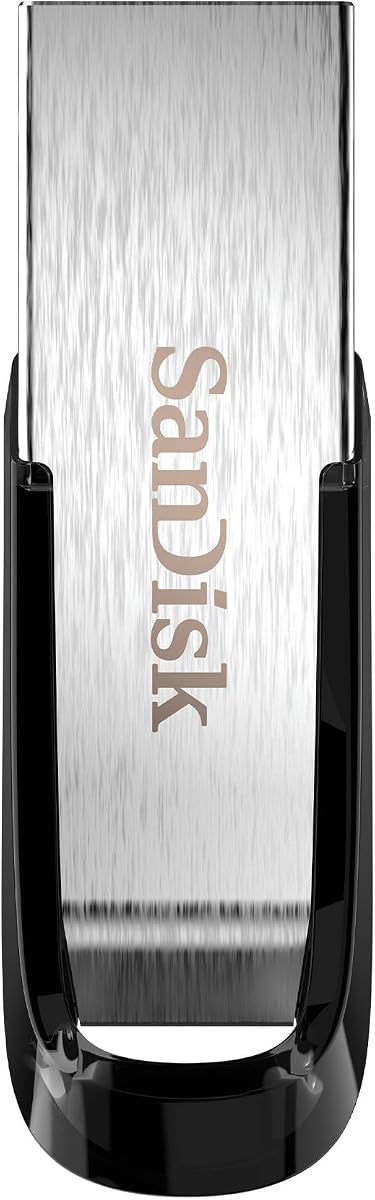

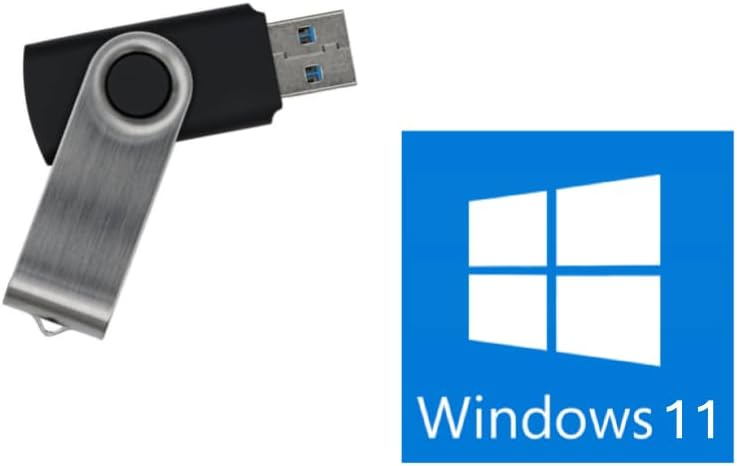


This bootable flash drive stands out as the most comprehensive solution for Windows installation and system repair tasks. It supports installing Windows 11 without requiring a TPM chip which makes it accessible for older hardware that cannot meet modern security standards.
We may earn a commission when you buy through this link, at no additional cost to you.
The drive includes preloaded network drivers for both WiFi and LAN ensuring you can connect to the internet immediately after installation without needing additional downloads. It also features hard drive partitioning tools data recovery utilities and other maintenance programs useful for troubleshooting boot issues.
While it offers robust functionality it does not support Windows Automatic Repair options meaning you must reinstall the operating system entirely rather than repair the existing one. Additionally any existing data on the target hard drive will be lost during this process.
We recommend this tool for users who need a reliable all-in-one solution for fresh Windows installations or fixing persistent boot failures. The included tutorials and technician support add significant value for beginners navigating complex system repairs.
The drive allows Windows 11 installation on systems without TPM hardware expanding compatibility to older PCs that would otherwise be ineligible.
Built-in WiFi and LAN drivers ensure immediate internet access after installation eliminating the common hurdle of missing network connectivity.
We may earn a commission when you buy through this link, at no additional cost to you.
While not pre-configured as a bootable installer this flash drive offers exceptional speed and durability ideal for creating custom boot media. Its high read speeds allow rapid transfer of operating system ISO files reducing wait times when preparing installation drives.
We may earn a commission when you buy through this link, at no additional cost to you.
The sleek metal casing protects the drive from physical damage and heat during extended use making it suitable for frequent transport between workstations. Password protection software secures private files using AES encryption to prevent unauthorized access to sensitive data stored on the device.
The main limitation is that it does not come with pre-installed boot tools or system utilities meaning you must create your own bootable image using external software. This requires more technical effort compared to ready-to-use bootable drives.
Choose this drive if you prefer building custom bootable media and value speed and durability for general storage needs. It is a versatile tool for IT professionals who need reliable high-performance storage for system images.
Up to 150MB/s read speeds significantly reduce the time needed to transfer large operating system images and installation files.
The durable metal casing provides robust protection against drops and heat ensuring long-term reliability in demanding environments.
We may earn a commission when you buy through this link, at no additional cost to you.
This multi-distribution bootable drive is perfect for users exploring Linux or needing multiple OS options in one portable package. It includes 16 popular Linux distributions allowing you to test or install different systems without downloading ISO files individually.
We may earn a commission when you buy through this link, at no additional cost to you.
The drive supports running Linux directly from the USB without installing to the hard drive which is ideal for testing compatibility or using Linux temporarily on unfamiliar hardware. It also supports Windows 11 installation for users needing flexibility across operating systems.
While powerful it has limited storage capacity compared to larger drives which may restrict additional custom files or backups. Users should also refer to external video instructions for boot setup as physical documentation may not include detailed step-by-step guides.
We recommend this for Linux users or IT admins who need diverse OS options for testing and deployment. The variety of included distributions saves significant time preparing multiple bootable media for different system requirements.
Sixteen different Linux distributions provide extensive choice for testing and installation without requiring separate downloads or media creation.
Users can try Linux systems directly from the USB drive without modifying the hard drive offering a risk-free way to evaluate compatibility.
We may earn a commission when you buy through this link, at no additional cost to you.
This budget-friendly bootable drive offers essential Windows repair and installation features without a high cost barrier. It supports Windows 11 installation without TPM requirements making it accessible for older systems needing modern OS upgrades.
We may earn a commission when you buy through this link, at no additional cost to you.
Key features include network drivers for WiFi and LAN connection and a password reset utility for recovering access to locked accounts. These tools make it a practical choice for home users managing basic system maintenance tasks.
To use the drive you may need to disable Secure Boot in your BIOS which requires some technical adjustment. Also like similar drives it does not support Automatic Repair meaning a full reinstall is needed for boot issues.
Choose this option if you need a cost-effective solution for Windows installation or password recovery. It balances essential functionality with affordability for casual users needing occasional system fixes.
The included tool allows recovery from locked accounts without reinstalling Windows entirely saving time and preserving system configuration.
Support for Windows 11 without TPM ensures compatibility with a wider range of hardware that does not meet strict security hardware requirements.
We may earn a commission when you buy through this link, at no additional cost to you.
This compact bootable drive focuses specifically on Windows 11 setup and recovery needs with minimal extra features. Its small 8GB capacity keeps the device lightweight and easy to carry for emergency system repairs.
We may earn a commission when you buy through this link, at no additional cost to you.
The drive supports installation without TPM hardware and works with both UEFI and Legacy BIOS modes ensuring broad system compatibility. It comes from a family-owned business with handmade testing adding a personal touch to product quality assurance.
Storage is limited to essential installation files meaning you cannot store additional backups or personal data on the same drive. Also it does not include hardware diagnostics so failed components must be diagnosed separately.
Select this drive if you need a simple portable solution for Windows installation and recovery. Its specialized focus makes it efficient for users who primarily need to restore or install the operating system.
Focused on installation and recovery this drive eliminates unnecessary tools to keep the setup process streamlined and straightforward.
Installation of Windows 11 is possible on older hardware without TPM chips expanding upgrade options for a wider user base.
We may earn a commission when you buy through this link, at no additional cost to you.
This Linux-focused bootable drive is designed for users transitioning from Windows or new to open-source systems. It includes nine pre-tested distributions that come with bundled software for productivity multimedia and communication reducing initial setup complexity.
We may earn a commission when you buy through this link, at no additional cost to you.
The package includes a printed user guide to help beginners navigate boot procedures and basic troubleshooting steps. Support is available for common issues such as black screens after selection ensuring a smoother experience during initial use.
The drive is limited to Linux operating systems so it cannot be used for Windows installation or repair tasks. Additionally disabling Secure Boot may be necessary on many modern systems to boot from the drive successfully.
We recommend this drive for anyone wanting to explore Linux safely without modifying existing system configurations. The combination of tools and guidance makes it an accessible entry point into the Linux ecosystem.
Pre-bundled office suites and multimedia software allow new users to transition smoothly from Windows without needing to install additional apps.
Included printed guides and support help users overcome initial boot challenges reducing frustration for those unfamiliar with BIOS settings.
We may earn a commission when you buy through this link, at no additional cost to you.
This three-pack of flash drives offers excellent value for users needing multiple reliable devices for system images or backups. Each drive provides 64GB storage with fast read speeds suitable for transferring large operating system files efficiently.
We may earn a commission when you buy through this link, at no additional cost to you.
Lexar DataShield software allows you to create password-protected secure areas on the drive to keep sensitive installation files safe. The retractable design and lanyard loop enhance portability and reduce the risk of losing caps or damaging the connector.
These drives come blank meaning you must create your own bootable media using external tools rather than receiving preloaded OS utilities. This approach requires more technical effort but offers flexibility to customize contents as needed.
Choose this pack if you need multiple drives for distribution or redundancy. The security features and speed make them ideal for professionals managing multiple system deployments across different machines.
Receiving three drives in one package reduces cost per unit and provides ready spares for team distribution or backup purposes.
DataShield encryption secures sensitive system files and configurations preventing unauthorized access to critical deployment tools.
We may earn a commission when you buy through this link, at no additional cost to you.
This versatile bootable drive combines installation recovery and diagnostic tools in one comprehensive package. It supports Windows 11 installation without TPM and includes network drivers ensuring connectivity after OS installation.
We may earn a commission when you buy through this link, at no additional cost to you.
Key tools include password reset utilities hard drive partitioning and data recovery features that assist in resolving common system problems. Video tutorials accompany the drive to guide users through installation and troubleshooting steps.
The drive does not support Windows Automatic Repair requiring a full reinstall instead for boot failures. Additionally disabling Secure Boot may be necessary on some systems to ensure successful boot from the USB.
Recommend this drive for users needing a complete toolkit for system maintenance. Its wide range of utilities makes it suitable for both fresh installations and repairing existing problematic systems.
The drive includes partitioning data recovery and password reset tools providing a full suite of utilities for complex system repairs.
Included video tutorials help users navigate boot and installation processes reducing technical barriers for less experienced users.
We may earn a commission when you buy through this link, at no additional cost to you.
This dual-connector drive offers maximum versatility for modern laptops and older desktops with both USB Type-A and Type-C ports. Its large 256GB capacity provides ample space for multiple system images and backup files.
We may earn a commission when you buy through this link, at no additional cost to you.
Advanced security software uses AES 256-bit encryption to protect sensitive files ensuring data safety during transport. The swivel design allows easy switching between connectors without losing caps or damaging ports during use.
The drive does not come pre-loaded with bootable operating system tools requiring you to create custom bootable media using external software. This adds technical effort but offers flexibility to tailor contents to specific needs.
Choose this drive if you work across mixed hardware environments requiring both USB types. The security and capacity make it ideal for storing critical system images securely and reliably.
USB Type-A and Type-C connectors ensure compatibility with both modern laptops and traditional desktop systems without needing adapters.
AES 256-bit encryption protects stored files from unauthorized access securing sensitive deployment and installation data during transit.
We may earn a commission when you buy through this link, at no additional cost to you.
This premium flash drive offers top-tier performance and durability ideal for creating custom bootable media or storing system images. Its fast read speeds significantly reduce transfer times for large operating system files.
We may earn a commission when you buy through this link, at no additional cost to you.
The rugged metal casing protects data from water shock temperature and magnetic damage ensuring long-term reliability in harsh conditions. An integrated keyring prevents loss making it easy to keep the drive accessible for emergency use.
The drive comes blank requiring you to create your own bootable media using external tools. This means more setup effort but provides full control over which operating systems or tools you load onto the device.
Select this drive if you need maximum durability and speed for system image storage. The extensive warranty and proven brand reliability make it a premium choice for professional and personal use.
Read speeds up to 300MB/s drastically cut file transfer times improving efficiency when preparing large bootable system images.
Protection against water shock temperature and magnets ensures the drive survives challenging environments without risking data loss.
We may earn a commission when you buy through this link, at no additional cost to you.
Selecting the right bootable flash drive depends on your specific operating system needs budget and level of technical expertise required for system installation or recovery tasks.
Ensure the drive supports the operating system you need to install or repair whether Windows Linux or multiple distributions. Preloaded options save time but verify supported versions and TPM requirements before purchasing.
Always confirm OS compatibility matches your hardware specifications to avoid installation failures or unsupported system requirements.
Choose capacity based on whether you need to store installation files alone or additional system images and backups. Larger capacities like 128GB or 256GB offer flexibility but may cost more for preconfigured bootable tools.
Match storage size to your needs to ensure you have enough space without overspending on unused capacity.
Verify that the drive supports both UEFI and Legacy BIOS modes to ensure compatibility with older and newer computers. Some systems require Secure Boot to be disabled which may involve BIOS configuration adjustments.
Dual boot mode support broadens hardware compatibility across a wider range of system configurations.
Some drives come with built-in tools like network drivers password reset utilities or data recovery programs which simplify troubleshooting. Consider whether you need these extras or prefer a blank drive to customize yourself.
Built-in utilities reduce setup time but may limit flexibility compared to custom-prepared bootable media.
Faster USB 3.0 or 3.1 speeds reduce time needed to transfer large installation files create bootable media. While not critical for final boot performance it affects preparation efficiency significantly.
Prioritize speed if you frequently create or update system images to save valuable time during preparation.
Rugged metal casings and water resistance protect your drive during transport ensuring reliable performance in field conditions. Durability is crucial for IT professionals managing multiple devices across locations.
Choose sturdy construction to minimize risk of physical damage and data loss during regular use.
Look for extended warranties and accessible technical support to ensure assistance if issues arise with the drive or installation process. Some vendors provide video tutorials or direct technician contact for guidance.
Strong support and warranty coverage provide peace of mind when investing in critical system tools.
Prices vary significantly between preconfigured bootable drives and blank high-capacity options. Determine whether convenience or flexibility better suits your workflow and budget constraints before purchasing.
Balance cost against features to find a drive that delivers value without unnecessary extras you won't use.
To use your bootable flash drive insert it into a USB port on the target computer and restart the system accessing BIOS or boot menu using the manufacturer key such as F12 or Del. Select the USB drive as the boot device to begin installation or recovery processes.
During use handle the drive carefully avoiding physical shocks or exposure to extreme temperatures that could damage internal components. If using metal casing drives they may become warm during extended transfers which is normal.
After use safely eject the drive before removing it to prevent data corruption and store it in a protective case away from magnetic sources. Keep the USB connector clean from dust to ensure reliable connection for future use.
Yes most bootable drives require Secure Boot to be disabled in BIOS to allow third-party operating system installation. This setting ensures the system can boot from external media rather than only trusted operating system loaders.
Reinstalling Windows using these drives typically overwrites the system partition deleting existing data on the target drive. Always back up important files before proceeding with system installation or repair tasks.
Most bootable drives designed for Windows or Linux do not support Mac systems without specialized tools. Macs require specific EFI boot processes and software compatibility that differ from standard PC configurations.
The drives provide installation media but do not include Windows product keys. You must supply your own license key during setup or activate Windows later with a purchased license.
Boot times typically range from a few minutes to ten depending on hardware speed and installed utilities. USB 3.0 drives generally load faster than older USB 2.0 connections reducing wait times.
Check that USB boot is enabled in BIOS and the drive is properly inserted. Verify Secure Boot is disabled and confirm the drive is detected in the boot order menu before proceeding.
The best bootable flash drive for you depends on whether you need preloaded OS tools or prefer customizable high-performance storage. Options like the 64GB 16-in-1 drive offer versatility for Linux while the SAMSUNG BAR Plus excels in durability and speed.
Prioritize compatibility with your hardware and system requirements to ensure reliable installation and repair capabilities across different machines. Selecting the right features saves time and reduces troubleshooting effort during critical system maintenance tasks.
Always check current pricing and availability before purchase since product details may change as technology evolves. Keeping your drive updated and properly maintained ensures it remains a reliable tool for future system needs.